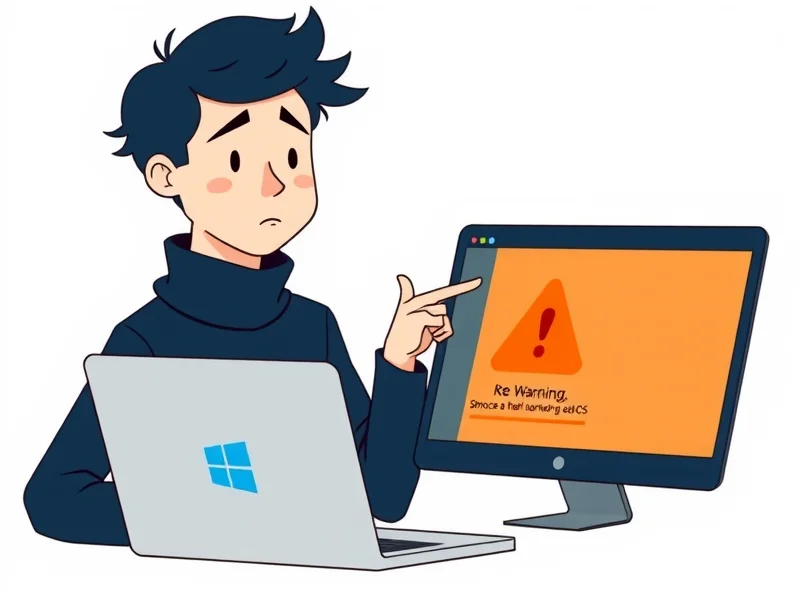
Problem / Starting Point
You're looking for a well-known program (say 7-Zip, VLC, a PDF reader, or a driver) and you land on a page that looks like the official one. The download button is big, the ads look professional, and before you know it you've clicked "Save." What you then install on your Windows PC isn't the original, though: it's a counterfeit installation package that comes bundled with malware. That's exactly what fake installers are, and they're one of the most common gateways for malware on private computers. A classic download trap almost always begins with a plausible-looking website and ends in a setup dialog that conveniently includes extra checkboxes "for added security."
Typical scenarios in which private users and small business owners fall into such a trap:
- Search results on Google & co.: Paid ads or SEO-optimized third-party sites lead you to a domain that looks deceptively similar to the real vendor's site.
- Newsletters, forums, or social media: Comments or direct messages promote "free Pro versions."
- Third-party portals: Sites like "Chip" or "Softonic" bundle their own download wrappers with advertising: not every wrapper is malicious, but some are.
- Intrusive pop-ups in the browser: "Your PC is infected: scan it for free now" leads straight to a fake installer.
The tricky part: most of these packages look completely normal at first glance. The setup wizard launches, you click through, and at the end your desired program runs, just with an uninvited guest in tow.
Why This Matters Now
Cybercriminals have professionalized the business of fake installers in recent years. Germany's Federal Office for Information Security (BSI) regularly warns about manipulated download pages that mimic popular free tools. Security reports from heise security also show that search engine advertising is increasingly being abused to distribute malware. The agency has also issued specific warnings about fake software download websites, a sign of just how commonplace this trick has become.
A few examples from recent times:
- Fake Windows updates: Criminals distribute manipulated installation packages that look like legitimate updates but load additional malware in the background. The BSI has issued corresponding warnings.
- Imitated free tools: Popular programs such as VLC or Notepad++ are offered in counterfeit form on third-party sites. The report on fake websites imitating popular free tools shows which tricks are currently being used.
- Key combo instead of a click: In some campaigns, simply pressing a certain key combination is enough to trigger a malicious download: the Federal Office urgently warns about this trick.
- Fake antivirus software: Supposed security tools are also frequently used as bait to get people to install malware: the BSI has published a dedicated explanation on this.
For private users and small business owners, this means: anyone installing software on a Windows PC today must critically review every download, otherwise the supposed helper turns into a gateway for attackers.
Step-by-Step Solution
The following checklist helps you evaluate a suspicious download before and during installation. If you proceed consistently, the risk of a malware infection drops significantly.
1. Always Navigate Directly to the Vendor's Site
The most important step: type the vendor's address into the browser yourself. For 7-Zip that's 7-zip.org, for VLC it's videolan.org, and for your PDF reader of choice it's the official domain. If you don't know the vendor, take a moment to research the correct name: a misspelled brand name often leads straight to a fake site.
Practical helpers:
- Browser bookmarks for the software you use regularly.
- The original site usually features a note pointing to the "official download."
- Avoid third parties, even if their name sounds reputable.
2. Take a Close Look at the Download URL
Before you click "Save," glance at the address bar. Watch out for:
- Typos in the domain (
videolan.deinstead ofvideolan.org,microsft.cominstead ofmicrosoft.com). - Unusual endings (
.zip,.top,.click,.download: almost always suspicious for well-known software). - Numbers or hyphens before the actual name (
1-vlc-player.com,download-vlc-gratis.net).
If the domain looks off to you: stay away and double-check on the original site. The guide from Schieb.de on software authenticity describes these tricks in detail.
3. Check the File Format Before Installation
Trustworthy downloads are usually .exe (Windows), .msi, or .zip. Be especially wary of the following formats:
.isoas a direct download for a simple desktop program..msiwith a conspicuously long file name and extra characters..bat,.cmd,.vbs,.ps1,.js: these formats launch scripts and are practically never needed for standard installations.
Right-click the downloaded file → "Properties" → "Details" tab shows you the actual format and often the publisher as well. If no name appears, or the vendor is unknown to you, proceed with caution.
4. Virus Scan and Hash Comparison
Modern browsers like Microsoft Edge already check downloads with Microsoft Defender SmartScreen. In addition, you can:
- Use VirusTotal: Upload the file to virustotal.com and see how many of the roughly 70 scanners flag it as malicious. A single hit can be a false positive, but multiple hits are a clear warning sign.
- Compare hashes: The vendor's site often lists the SHA-256 hash of the file. Using PowerShell (
Get-FileHash) or a tool like 7-Zip, you can calculate the hash of the downloaded file and compare it.
5. Stay Alert During Installation
Legitimate setups ask you about the installation path, optional components, and desktop shortcuts. Warning signs include:
- Duplicate license agreements: if two different "EULAs" appear one after the other, one of them is likely trying to sneak in extra software.
- Pre-selected checkboxes for "additional offers," "security tools," or "browser extensions." You need to actively deselect these boxes.
- Other program names in the list of components to be installed. If you're trying to install VLC and "Optimize PC Pro" suddenly shows up, abort.
- Early prompts to grant administrator rights even though the program doesn't need them (for example, a simple text editor).
When in doubt, the rule is: better to cancel the process once and re-download cleanly from the original site than to let malware slip in.
6. Check the System After Installation
If you're unsure whether an installation went cleanly, you can take the following steps right afterward:
- Run a full scan with Microsoft Defender under "Security > Virus & threat protection."
- Review installed programs under "Settings > Apps" and uninstall anything you didn't deliberately install.
- Check autostart entries using the Task Manager ("Startup" tab) and
msconfig. - Go through browser extensions in Edge, Chrome, and Firefox and remove anything you didn't add yourself.
What Can Go Wrong (Edge Cases)
Even with a careful approach, there are situations where you need to be extra cautious.
1. Search engine ads instead of organic results. Even when you enter the correct company name, a paid ad often appears at the top linking to a third-party site. Never click on ads without checking; instead, scroll to the organic results or use your bookmark for the original site.
2. Fake security warnings in the browser. Pop-ups like "Your PC is infected with 37 viruses" are almost always scams. Close the tab via the Task Manager (right-click the taskbar icon → "End task"), not via the pop-up's "Close" button, which often triggers the download.
3. Driver and update installers from third parties. Programs like "Driver Booster" or "IObit" conveniently offer driver updates. In reality, they frequently deliver outdated or manipulated packages. Get drivers directly from your hardware manufacturer (Intel, AMD, NVIDIA, Realtek, etc.).
4. Portable apps from untrusted sources. Portable versions are handy, as long as they come from trustworthy sources like portableapps.com. Downloads from forums or torrent trackers are not trustworthy sources, even if the EXE file itself looks clean.
5. Multi-installers and wrappers. Some vendors (for example, open-source projects) offer their software via "mirror" sites. Check whether the mirrors are officially listed, and if in doubt, download from the project's main page.
6. Manipulated hashes on the vendor's site. Extremely rare, but possible: if the original site itself is compromised and the hash is adjusted, all checks come back positive. That's why it's worth occasionally reading the official announcements or press releases for widely used software: an unusual file size is usually noticed there first.
7. Trusting your browser is not enough. Even if Microsoft Defender SmartScreen or Google Safe Browsing gives the file a pass, that only means it wasn't on the relevant lists at the time of the check. Zero-day drops, brand-new campaigns, and individually tailored fake installers can slip through. Stay critical even when your scanner gives the all-clear.
8. Multiple distributors in a row. Some fake installers redirect you across several domains so the original source is harder to trace. Pay attention to whether the domain changes during the download process: that's always a warning sign.
Connection to the Book "Securing Windows"
If you want to permanently secure your Windows PC against download traps, manipulated installers, and other risks during software installation, it's worth taking a look at the book "Securing Windows." Chapter 7 ("Secure Software Installation") covers exactly the topics you've seen here in compact form, expanded with further steps such as signed installation sources, working with package managers, and checklists for setting up a new computer for the first time. A free sample chapter gives you an impression of the structure and depth before you buy.
FAQ
How can I tell whether an installer really comes from the vendor? Check the publisher in the file properties and verify the digital signature. Reputable software is typically signed by a well-known company. If it says "Unknown Publisher" or a name you don't recognize, you should not run the file.
Is it enough if my antivirus scanner doesn't trigger? No. A missing alert is not a free pass. Newly compiled malware is only detected by many scanners after a delay. Take additional precautions: vendor site, hash comparison, and manual review of the installation steps.
What should I do if I've already run a fake installer? Disconnect the PC from the network, run a full scan with Microsoft Defender and optionally with a second scanner, uninstall any unknown programs, and change any passwords you used on the affected device, especially the password for your Microsoft account.
Are third-party platforms like Chip.de or Softonic.com fundamentally dangerous? They are not inherently dangerous, but they often bundle advertising and their own download wrappers. It depends on the specific file. Going directly to the vendor is always safer.
How can I reliably find the original download URL? Use the Wikipedia page for the program in question: it usually links to the official website. Alternatively, security portals like heise Security or Schieb.de can help, where reputable tools are regularly reviewed and provided with original links.
📖 Want More Protection?
"Secure Software Installation" is just one of 14 chapters in the practical guide <strong>"Securing Windows"</strong>: step by step, no prior knowledge required, for private users and small business owners.